



Menu Template:
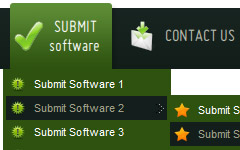
Animated Rollover Buttons Orange Toolbar


 |  |  |  |  |
Mini Button Template
This menu is generated by Flash Menu Builder.
Create your own menu now!
Or follow on Twitter :Free Flash Button , Free Flash Button Mini Button Template

Mini Button Template Screenshots
Menu, Button, and Icon Collection
Flash Menu Builder provides huge collection of 1400 web buttons, 6600 icons, 300 ready-made samples, so you'll create really nice looking menus and buttons with little or no design skills at all! Web 2.0, Mac, iPhone, Aqua buttons, Vista, XP, transparent, round, glossy, metallic, 3d, tab menus, drop down menus will be a breeze!Button and Icon Samples

How to Use Flash Menu Builder Menu Generator
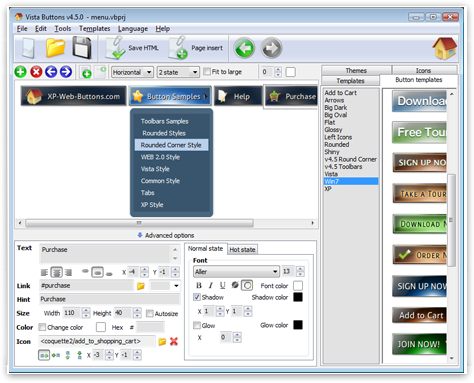
- Now it is time to save your project file. Note that you are free to save your project at any time. To save project just click "Save" or "Save As" button on the Toolbar or select "Save" or "Save As" in the Main menu. The "Save as…" dialog will appear, where you should select a place you want project to be saved to, and enter the project name. After clicking "Ok", project will be saved.
- Also, you can save your menu in the HTML format. To do it click "File/Save as HTML" in the Main menu. "Save As…" dialog will appear, where you should select a path you want your project HTML to be saved to, and the HTML page name. After clicking Ok, page containing your menu will be saved.
- Also, you can insert your menu into the existing HTML page. To do so, click "Page insert" button on the Toolbar. "Build the menu into your page" dialog will appear. Click "Browse" button to choose a page you want to insert your menu into. After choosing a page and clicking "Ok", chosen page's HTML code will appear in the Code field of the dialog.

After that you can edit your code. Then set the cursor to the line you want menu code to be added to and click the "Insert" button. The menu code will be inserted into the page. Then you can either save the page or close the dialog without saving. - Good navigation is an important step to website success. If people can't find their way around the site, they will quickly give up looking and leave, never to return. So, it's absolute vital that your website has a fast, neat, and
eye-pleasing navigation.
Don't allow your website visitors to get lost. Try Vista Buttons!

Insert button script into the existing HTML page
You can insert your button script into the existing HTML page. To do so, click "Page insert" button on the Toolbar.
Horizontal Css Menus Timer Effect Button State
You can create 1-state, 2-state, 3-state and 3-state toggle buttons using Vista Buttons. 1-state buttons are simple static image buttons. 2-state buttons respond to mouseOver event creating rollover effect. Mouse click doesn't change the button appearance. 3-state buttons support both mouseOver and mouseClick event. 3-state toggle buttons additionally stick in the pressed state after a click.
Javascript This Menulist Css Drop Down Menus
Create drop down menus based on css using Vista Buttons. Make various styles for each submenu item adjusting css styles.
Tabs Submenu Css Css Drop Down Menus
Create drop down menus based on css using Vista Buttons. Make various styles for each submenu item adjusting css styles.
Menu Horizontal Dhtml Frameset Support
Please contact Customer Support at (please include template name in the message title)
FAQ
- ".. However now I'm just wanting to edit the webpage menu itself."
- "..Please provide step by step instructions on how to create and add a button for a buttons websites menu." Créer Un Menu Entierement En Images
- ".. I want to clone one of your vista button, make some changes, and save the changed button to a new theme and I'm having trouble figuring out how to do that."
- ".. Is there a way to add images to the image collection of the button software?
- "..How can I set up Vista Buttons dreamweaver extension?"
- "..I want the web page navigation bar in the top frame but the sub menus to appear in the bottom frame."
Mini Button Template Popular Templates
Mini Button Template Recommended by:

Mini Button Template Awards





Mini Button Template Template of Day